If you need to migrate your WordPress site or change the domain name or location of your WordPress installation, it’s good to keep in mind how WordPress keeps track of itself via the WordPress Address and Site Address settings.
These settings can be adjusted directly in the WordPress admin dashboard from Settings > General or you can make these modifications to wp_options table in the database.
Tip: In the vast majority of cases, both the Site URL and Home fields will be the same address. You only need to change the Site URL setting to be different if you have a custom installation in which your system administrator has placed the core files outside of the document root directory of your website.
WordPress WP_HOME and WP_SITEURL Settings
There are 2 WordPress options that you can adjust to change the behavior of how WordPress works.
- WordPress Address (URL) / WP_SITEURL: The address where your WordPress core files reside.
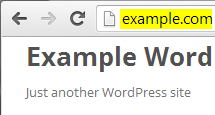
- Site Address (URL) / WP_HOME: The address typed in a browser to reach your WordPress blog.
| WordPress Address (URL) / WP_SITEURL | Site Address (URL) / WP_HOME |
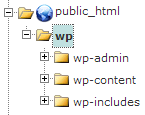 |  |
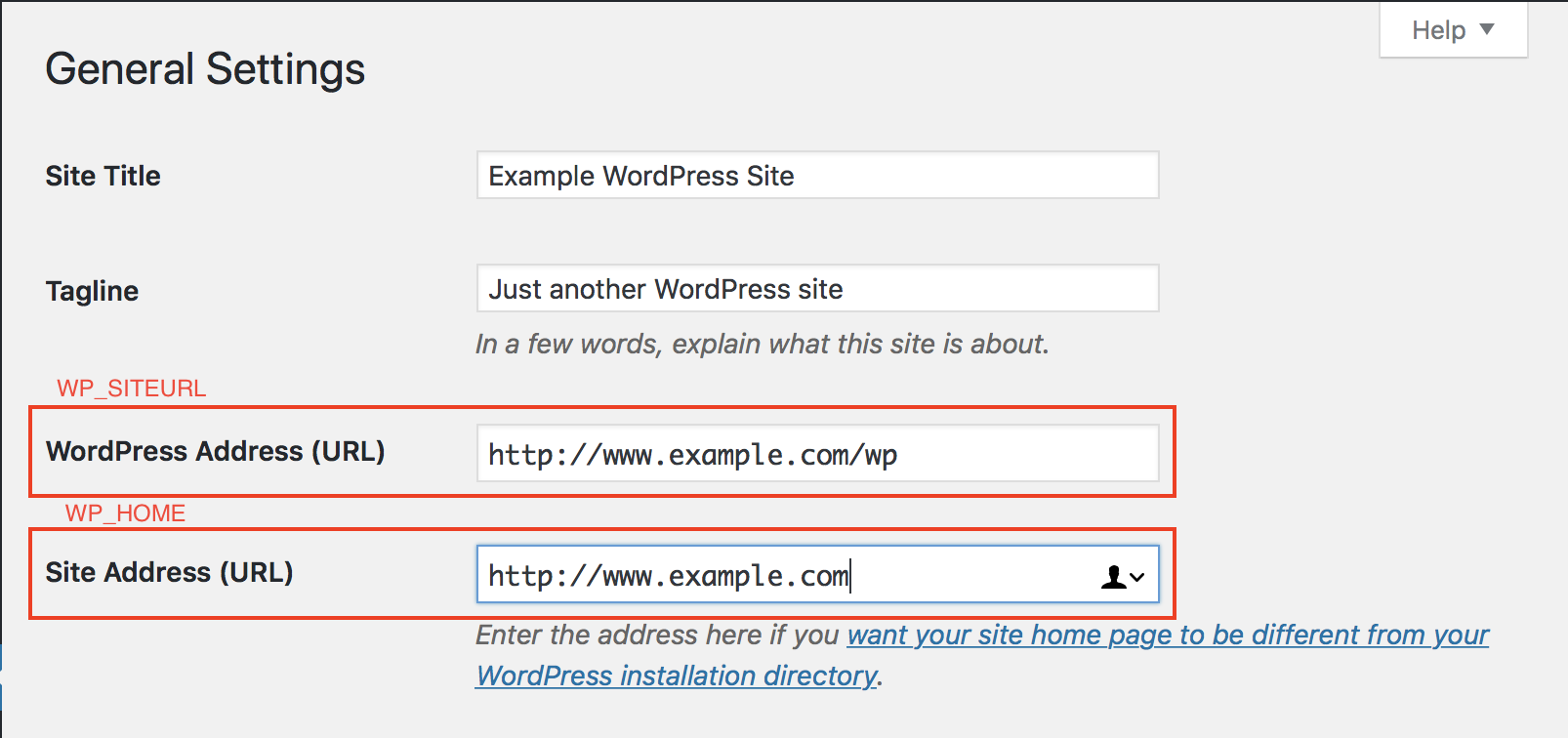
As you can see from the example above, I have my WordPress core files stored inside my /public_html/wp directory so that they aren’t clogging up my root directory.
However I still want people just to type in https://www.example.com to get to my WordPress site, so I’ve left that set as my Site Address so WordPress knows this is what I want displayed instead of the core files location.
This is just one example of what can be done with WordPress URL settings. You might also need to modify these settings after moving your WordPress website to a new server, or testing a new structure for your website.
How to Change Your WordPress Site URL in Admin Dashboard
You can also adjust your WordPress URL settings directly from the admin dashboard. This method will typically work if you haven’t moved your WordPress installation and aren’t having any issues access it.
- Login to WordPress admin dashboard.
- Click on Settings > General.
- Fill in your WordPress Address and Site Address and click Save.Note: Be aware with these settings in the wp-config.php file, the ability to modify them from the dashboard is lost.
- Edit your wp-config.php file.
- Define your
WP_HOMEandWP_SITEURLsettings by inserting these lines of code towards the top:define('WP_HOME','https://example.com'); define('WP_SITEURL','https://example.com');
How to Change Your WordPress Site URL in the Database
You can also directly modify your WordPress URL settings in the WordPress database using the phpMyAdmin tool.
- Backup your database in cPanel prior to making changes.
- Use phpMyAdmin to manage your WordPress database.
- Select your WordPress database from the left.
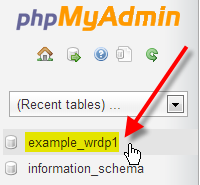
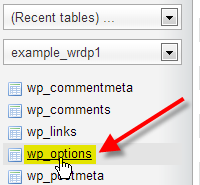
- Then select your wp_options table. Your wp_ prefix may differ depending on your install settings.
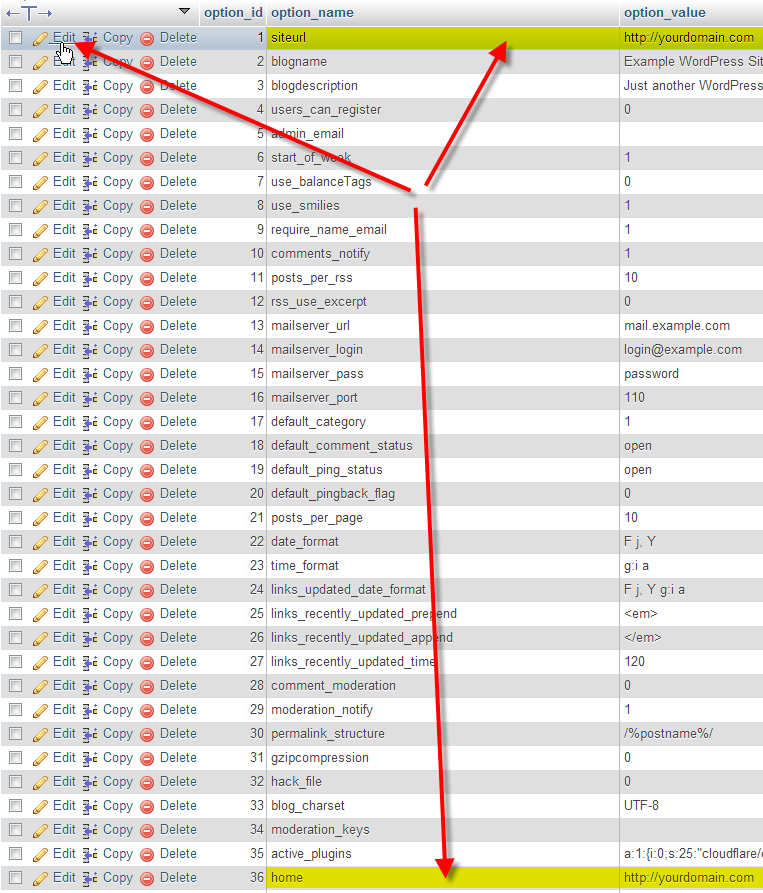
- Click Edit beside either the siteurl or home entries. You may need to search for them with the Filter rows function at the top.
- Enter in your new value in the
option_valuefield, then click Go to save the changes.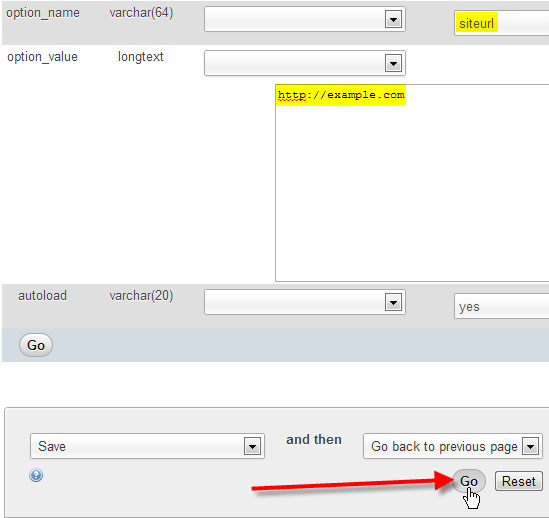
Detect and Change WordPress Address with RELOCATE
If you’re having issues accessing your WordPress dashboard, you can have WordPress automatically try to figure out what the correct WordPress Address should be using the RELOCATE flag in your wp-config.php file.
RELOCATE flag set, WordPress will automatically update your WordPress core files path to the URL used to attempt to access the wp-login.php script. This only affects the WordPress dashboard and not the site itself.- Edit your wp-config.php file.
- At the top of the file, add the following line of code:
define('RELOCATE',true); - Now visit your https://www.example.com/wp/wp-login.php page in your web browser. Be sure to type in the path of your WordPress core files before wp-login.php
- Log into your WordPress dashboard as you would normally.
- If you navigate to Settings > General, you should now see that WordPress has automatically populated the WordPress Address (URL) field for you, with the path to your WordPress files.
Hosting Optimized for WordPress
Purpose-built infrastructure optimizes WordPress sites for speed and security. Get server-level caching, automated updates, and WordPress-specific security hardening managed by experts who understand the platform.
 Free Website Builder Free SSLs Unlimited Bandwidth
Watch the Video – 4 Ways to Change Your Site URL in WordPress
Are you a visual learner? Watch our video to learn how to change your Site URL and Home URL settings in WordPress.
- Method 1: Change Your URL From The WordPress Dashboard
- Method 2: Change Your Site URL with a Search & Replace Plugin
- Method 3: Change Your Site URL With WP-Config File (Advanced)
- Method 4: Change Your Site URL With WP-CLI (Expert)
Looking for more guides? We have over 400 WordPress How To Articles to help you!
